Include attachments to your Playwright report


To save us some time in the process to verify that a file is correct, let's automate the actions to download a file and add it to the Playwright test report for easy access.
Automated testing with Playwright is a great way to ensure your application is working correctly, but testing a file can be a challenge.
This is not a simple task to automate and needs to be tested by a human to be thorough. However, we can do our best to make this easier than manually having to open the application, and then interact with it, just to download the file. This could be OK once or twice, but this quickly becomes a tedious task very fast. As a result that this test will be "forgotten".
Luckily, Playwright has a solution. By adding the file to the test report - which can later be included in an artifact created by a pipeline - the tester can easily access and download the file to check it.
To set up a CI pipeline running Playwright, see GitHub Actions or Azure DevOps.
In this post, I will show you multiples ways how to add a file (or screenshot) to your Playwright report using testInfo.attach. To use TestInfo, add it as the second parameter of the test method.
Add a downloaded file to the report
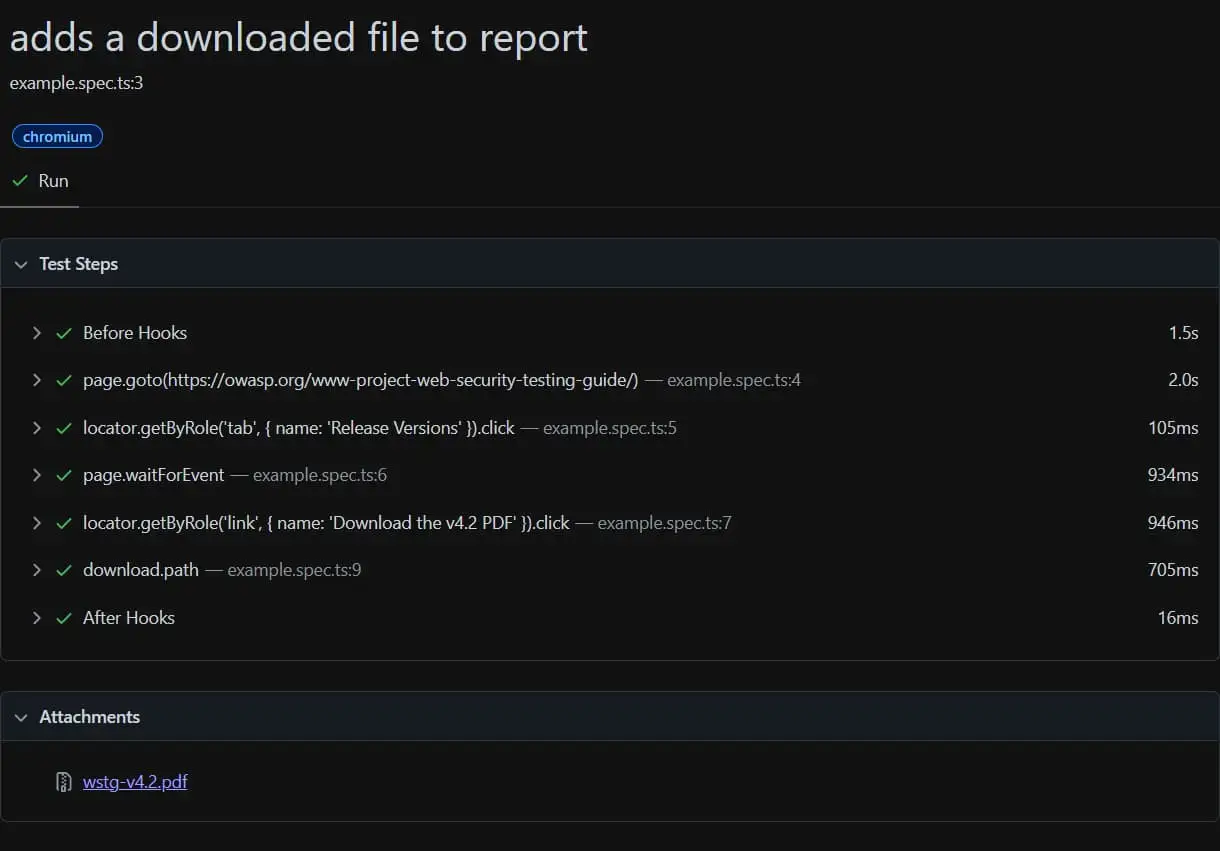
The first option is to add a file that is downloaded by the browser:
- First, create a "hook" that waits for the download, and then click the element to start the download (2)
- Add the file to the report, use
suggestedFilenameto get the name of the file, andpathto include the temporary path of the downloaded file (3)
download.spec.ts
Add an external file to the report
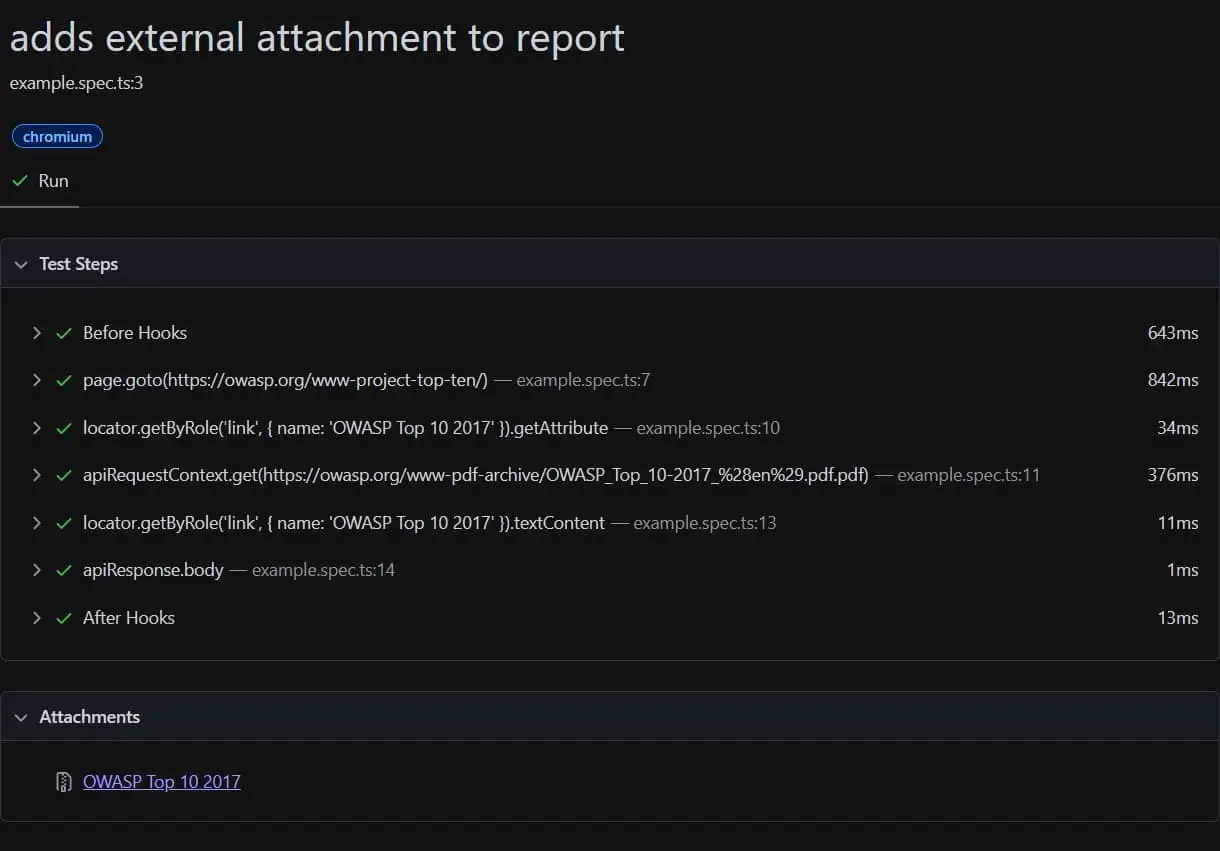
The second solution is to add a file that is available as an URL:
- The first step is to grab the URL of the file (2)
- Next, use the
APIRequestContextto download the file (3) - Lastly, add the file to the report by adding the request's body (4)
external.spec.ts
Add a screenshot to the report
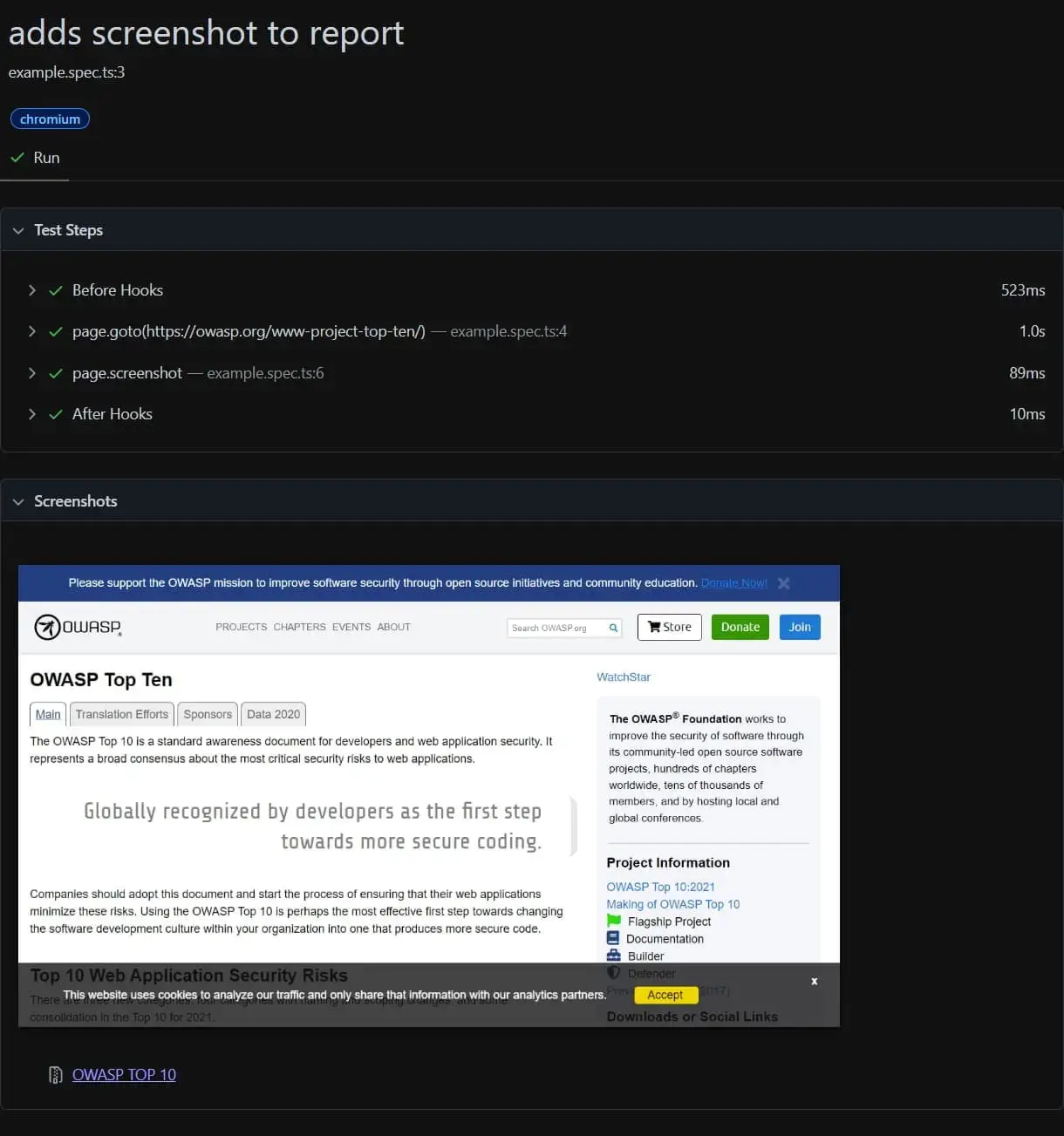
The last way is to take a screenshot of the page and attach it to the report. For this,
- Simply take a screenshot of the page, or a specific element on the page (2)
- Include the image using
bodyand set the content type by usingcontentType(3)
screenshot.spec.ts
Conclusion
In this post, we've seen how we can attach different files as an attachment to the Playwright report. Doing this makes it easier to access these files in order to verify their correctness.
Even if these files are not verified on each run, we can store a history of these files. In the case that something is off, we can go back in time and pinpoint the exact commit that has caused the difference,
Related articles
Feel free to update this blog post on GitHub, thanks in advance!
Enjoying the blog?
Support my work
If you enjoyed this post and found it useful, consider supporting my work. It helps me keep creating and sharing content like this. Thank you!